Get the transcript you’re authorized to use
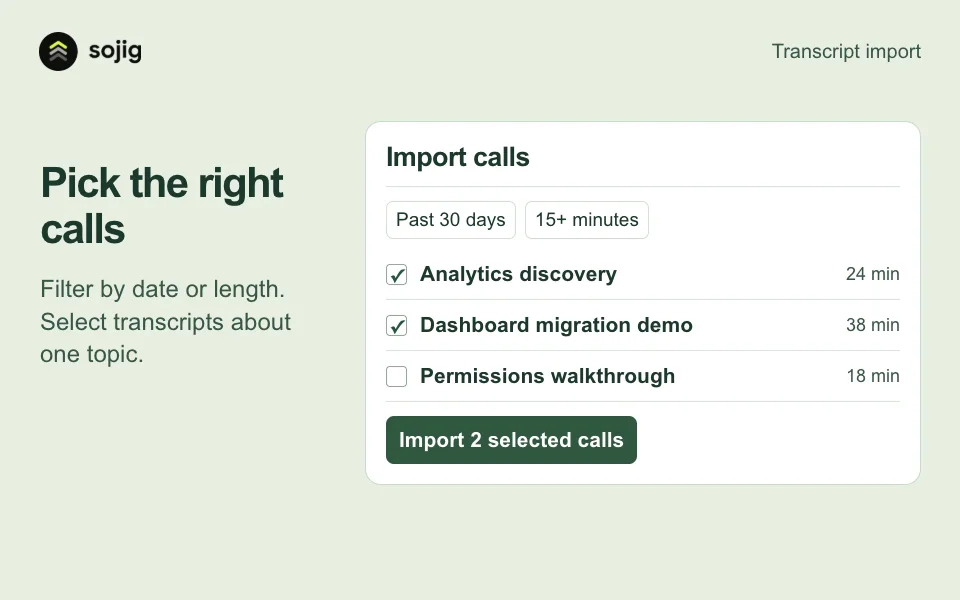
Open the recorded call in Fathom and use Copy Transcript above the transcript, as described in Fathom’s help center. Paste the text into your approved workspace. You can also connect Fathom to Sojig if your account can retrieve the meeting.
Make sure the recording and its intended use are authorized. Remove account names, deal terms and unrelated discussion. In the browser tool, use only the excerpt you need. For the signed-in studio, read the privacy policy before submitting material.
Label the exchange before choosing a format
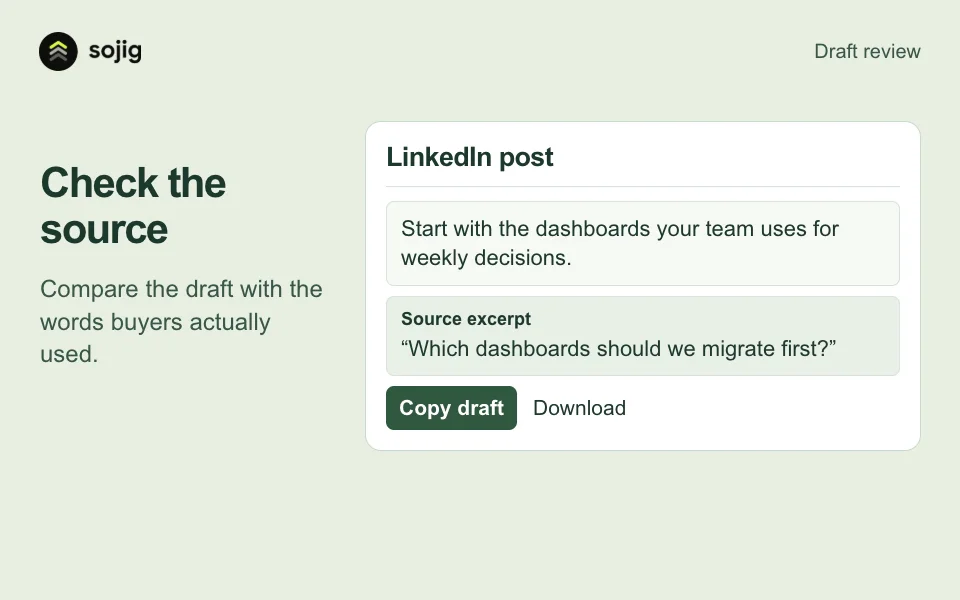
Keep the buyer’s question, the response and any condition that changes it. If the transcript misses a word that matters, verify it against the recording before using a quote. Record the meeting link or timestamp privately for your reviewer.
Illustrative example: A buyer asks if a report can be reviewed before migration. The rep says yes for a sample file in an approved test environment. This can become a checklist for running a sample migration. It doesn’t substantiate a general claim about availability in every plan.
Hand off the draft and source
- Choose one format that answers the question. Give a help article the relevant prerequisites, or keep a social post to one lesson.
- Check product claims against current docs or ask the product owner.
- Send the draft to the designated approver with the excerpt and the claims that still need a decision.
If a linked recorder doesn’t show a call you can access, use Fathom’s copy workflow and paste an authorized excerpt. See Sojig’s transcript input options.