1. Get the text from one Fathom call
Open the call in Fathom and choose Copy Transcript above the transcript. Paste an authorized excerpt into the free LinkedIn tool. Remove names and deal details you do not need, and keep the exchange that explains the buyer’s concern. Fathom’s transcript-copy instructions.
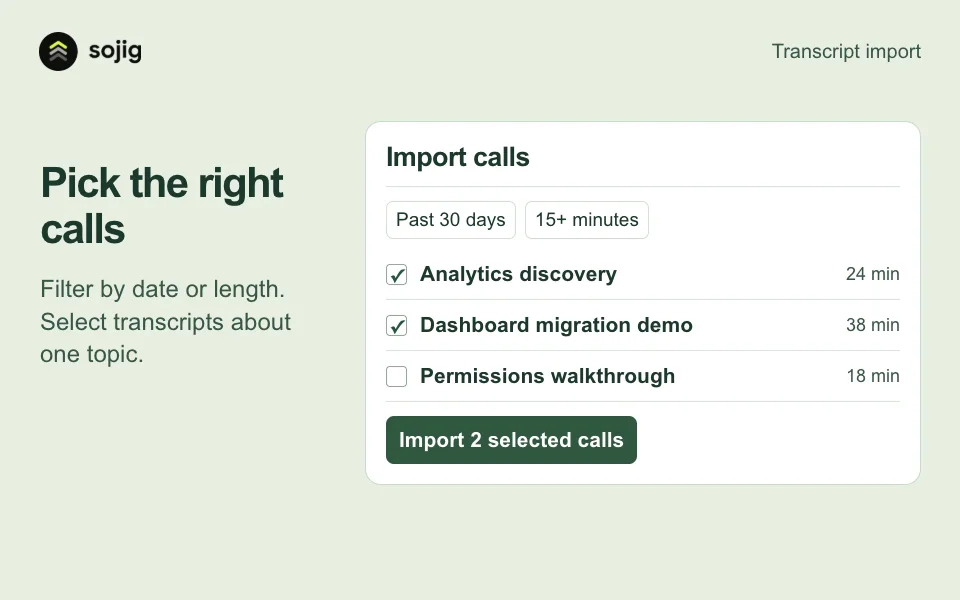
For a full call, use the Fathom connection. Sign in to Sojig, open Calls & recorders, and choose Connect Fathom, authorize the account, and select Browse calls and Import call. Under Imported calls, choose Create content. If the call is unavailable to the connected account, use an excerpt you are permitted to copy.
2. Give one buyer objection a useful answer
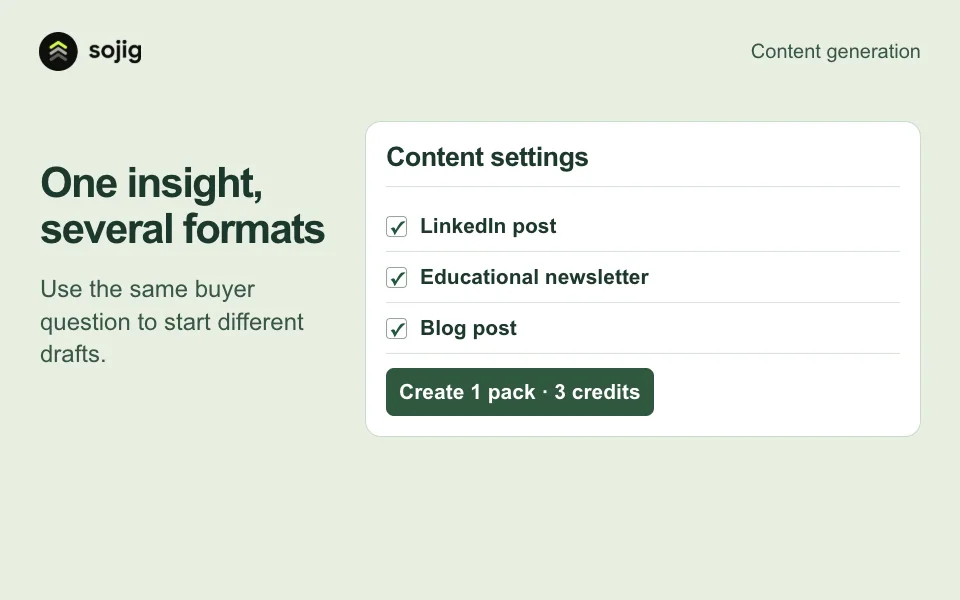
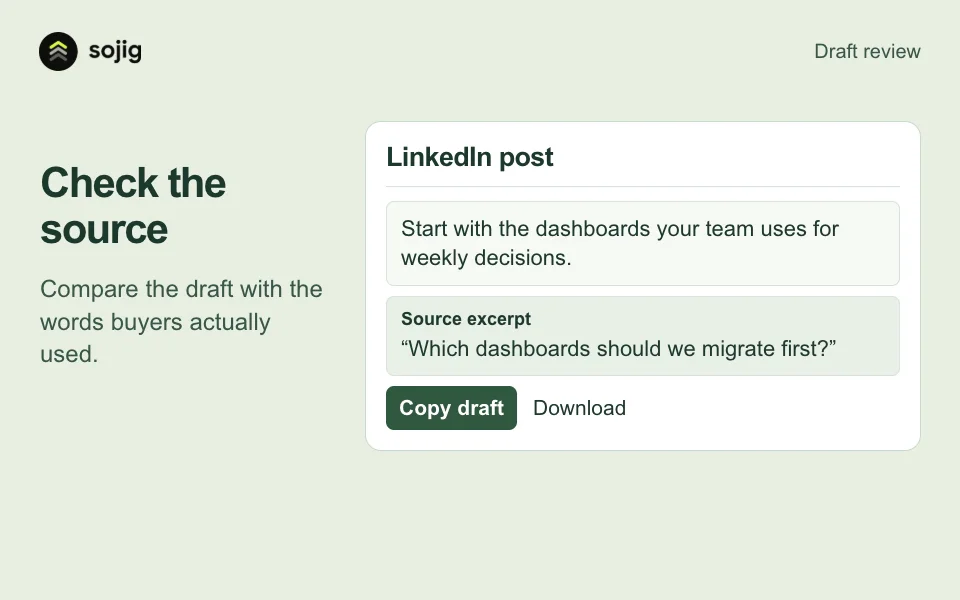
A call about switching reporting tools might contain objections about retraining, alert reliability and reconciliation. Choose one. The free tool gives you a post starter. In the signed-in workspace, choose the LinkedIn post format and create a content pack. Review the source before rewriting the hook in your own words.
Illustrative transcript
Buyer: If we move the dashboards, how will we know the old alerts still work? Rep: We’d test one threshold in the pilot and check who receives the notification.
Illustrative LinkedIn post
Before you migrate a dashboard, test one alert your team relies on. Trigger it in the pilot, check who receives it, and ask that person to name the first action they would take. Matching chart values won’t tell you whether the new notification reaches the right owner.
3. Review before sharing
Check that the post generalizes the lesson without revealing the account or implying it happened in every rollout. Verify any quote against the recording and get permission before quoting or identifying a participant. Keep the timestamp in your private notes for reviewers.
Copy the final text to LinkedIn, or use Sojig’s review and publish workflow after connecting an eligible account. If you want to use the same exchange for longer content, see the Fireflies-to-blog walkthrough for an article structure.