Find the decision behind the objection
“We already have a spreadsheet” can mean the current process works, switching is risky, or nobody owns the replacement. Read the next exchange and write down what the buyer needs to decide. Choose a response you can explain in a few sentences. The sales call objection extractor helps you shortlist buyer concerns and nearby replies.
Write the post in three parts
- Hook: Name the tradeoff in a way people in that role recognize. Strip identifying details from the example.
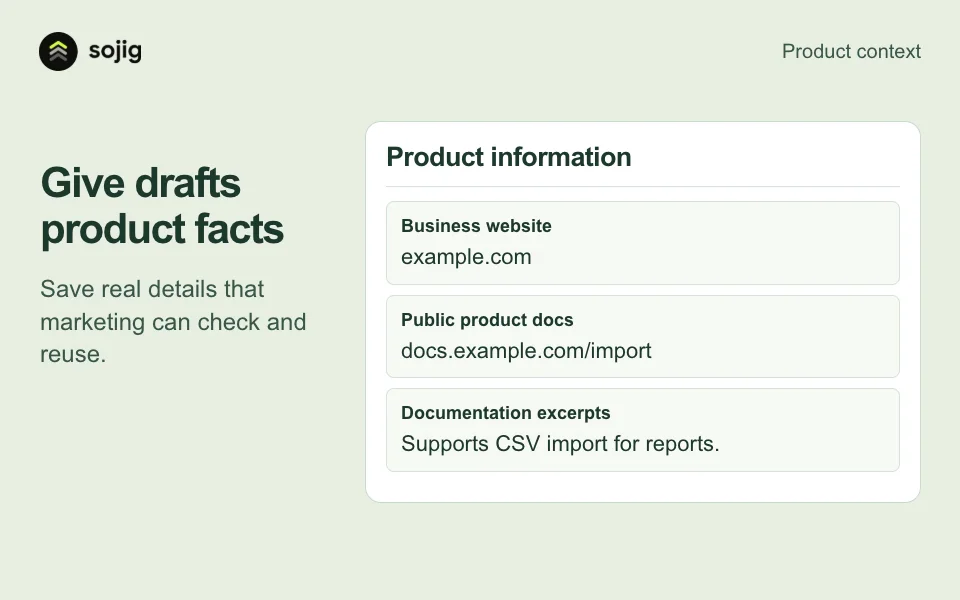
- Point of view: Explain what to check or do, with one practical example. Use approved product evidence if you make a feature claim.
- Close: Give the reader a diagnostic question or small test. Keep the ask proportionate to the advice.
Illustrative post: A process that already works in spreadsheets
Before you replace the spreadsheet, pick one approval it handles today. Who approves the change, where is that decision recorded, and how can a teammate verify it later? If those answers are clear, keep the workflow simple. If they aren’t, fix ownership before you migrate the sheet.
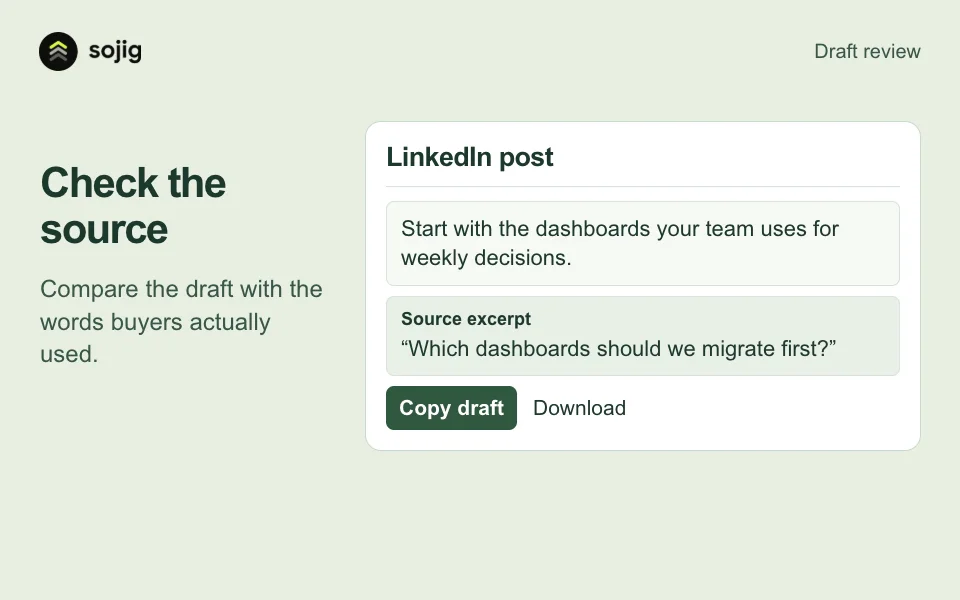
The post works without a customer name, a percentage or a quote. A weaker version would say most teams outgrow spreadsheets, which the source wouldn’t support. Before posting, check whether the objection has become a punchline at the buyer’s expense. If so, make the buyer’s concern the premise of the advice.